Docs
Tunwarden runs on macOS, Linux and Windows. A small background daemon owns the tunnels, so they survive closing the terminal. The CLI and the desktop app both talk to it. This page covers the essentials; every command also has --help with examples.
Install
See Download for the desktop app and the one-line installers. From source, with Rust:
cargo install --git https://github.com/Om-jannu/tunwarden tunwarden-cli
Tunwarden runs your own tools. Install ssh, gcloud, kubectl or whatever your tunnels use.
Quick start
tunwarden init                  # write an example config
tunwarden import ~/.zshrc       # or turn your tunnel aliases into entries
tunwarden doctor                # check tools, logins and ports
tunwarden start --group daily
tunwarden status
tunwarden logs staging-db -f
tunwarden config-path shows where the config lives. import prints the entries it found; add --write to save them.
Config
One TOML file holds three kinds of entry. Logins are things you renew now and then. Profiles group an environment, its production flag and its login. Tunnels are any command that opens a local port, or an SSH forward that Tunwarden builds for you (ssh-local, ssh-remote, ssh-dynamic).
version = 1

[[logins]]                        # something you renew now and then
name = "google"
check = "gcloud config config-helper --force-auth-refresh --format=none"
login = "gcloud auth login me@example.com"
expired = ["Reauthentication failed"]
env = { CLOUDSDK_CORE_ACCOUNT = "me@example.com" }

[[profiles]]                      # environment, production flag and login shared by tunnels
name = "staging"
login = "google"
env = { CLOUDSDK_CORE_PROJECT = "example-staging-123" }

[[tunnels]]                       # any command that opens a local port
name = "staging-db"
profile = "staging"
command = "gcloud compute start-iap-tunnel db-1 5432 --zone=europe-west1-b --local-host-port=127.0.0.1:5433"
groups = ["daily"]
forwards = [{ local_port = 5433 }]

[[tunnels]]                       # SSH forwards are built for you, with keepalives and no prompts
name = "bastion-redis"
type = "ssh-local"
host = "bastion"
jump = ["jump.example.com"]
forwards = [{ local_port = 6380, remote_host = "redis.internal", remote_port = 6379 }]
Commands are never run through a shell: pipes, && and $VAR are rejected; point the command at a script if you need them. Quotes group words as in a shell. On Windows a backslash is an ordinary character, so C:\tools\gcloud.cmd needs no quotes; on macOS and Linux it escapes the next character. The full example, with AWS and kubectl entries, is example-config.toml.
Logins
When a login expires, the tunnels that use it stop with “login expired” and the next step. One login renews it and brings them back:
$ tunwarden login google
Running the google login (used by staging, prod): gcloud auth login me@example.com
...
logged in; restarting prod-api, staging-db
Tunnels in a production profile ask before they start. Pass --yes to confirm.
Commands
init- Write an example config.
import- Turn pasted tunnel commands or shell aliases into config entries.
list- List the configured tunnels.
status- Show each tunnel's state, port, uptime, restarts and the reason it failed.
start, stop, restart- Take names, --group, --profile or --all.
logs- Show a tunnel's log; -f follows it.
show-command- Print the exact command a tunnel runs.
add, edit, remove- Change entries without opening the file.
auth, login- Check logins, or run one and restart the tunnels waiting for it.
trust- Accept an SSH host key; it asks before trusting it.
doctor- Check the config, tools, daemon, logins and ports.
daemon- Start, stop, restart or check the background daemon.
autostart- Start the daemon when you log in.
config-path- Show where the config lives.
completions- Print shell completions.
On a terminal, a command missing its tunnel or login name shows a list to pick from, and start shows a live line per tunnel. In scripts and pipes nothing asks or animates, colours are off, and a missing name is an error listing the choices. NO_COLOR=1 turns colours off everywhere.
Shell completion knows your tunnel, group, profile and login names. For zsh:
echo 'source <(tunwarden completions zsh)' >> ~/.zshrc
Bash works the same way; fish and PowerShell are in tunwarden completions --help.
Desktop app
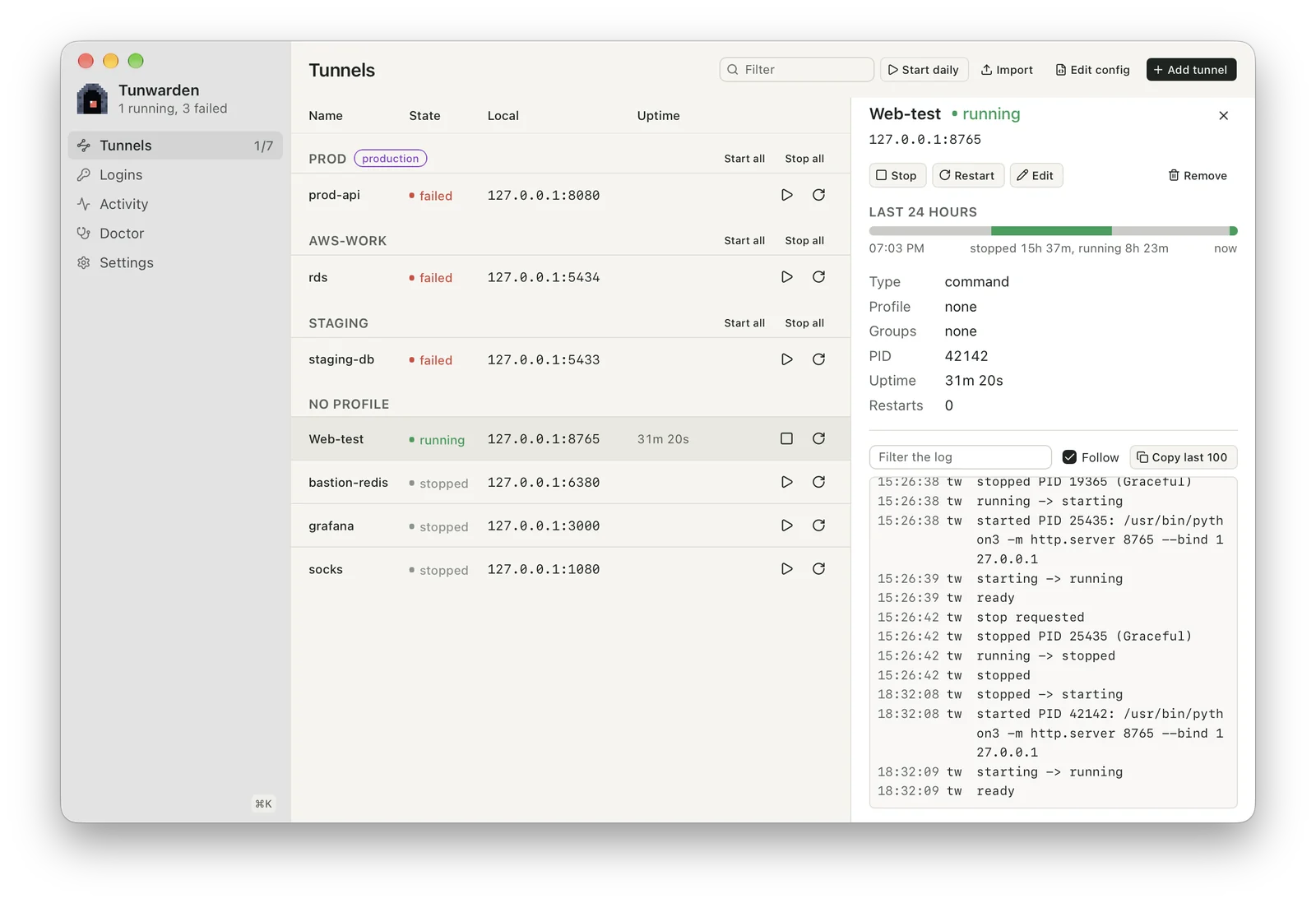
The app talks to the same daemon as the CLI, so both always show the same state. It lives in the tray or menu bar: click the lamp for every tunnel with a switch, or open the window for the details and logs.
- Click a tunnel to open its log, the exact command and its last 24 hours beside the list.
Esccloses it. ⌘K(Ctrl+Kon Windows and Linux) opens every action: start, stop, restart, log in, add or import tunnels.- On the tunnel list,
jandkmove through tunnels andspacestarts or stops the selected one. - Closing the window leaves the tunnels running. Quit from the tray menu, and choose whether they keep running.
Start at login
tunwarden autostart enable starts the daemon when you log in, and running tunnels come back after a reboot. disable and status do what they say. The desktop app has the same switch in its settings.
Known limits
- A tunnel counts as healthy while its local port is listening. If the remote side dies but the port stays open, it can show
runninguntil the tool itself exits; SSH tunnels exit within 45 seconds through keepalives. - For
ssh-remote, the server may bind the remote port on IPv6 only when IPv4 is taken, and Tunwarden cannot see that.